How to import a RoughAnimator project to Flash/Animate:
1) If you need to transfer the project from your mobile device to your computer:
2) Download this Flash extension and install it.
Latest update: February 1, 2021
For Animate CC, you can use this tool to install extensions.
3) Run the extension from the Commands menu in Flash.

(If it doesn't appear in the Commands menu, here's a workaround to install it manually:
Rename the .zxp file to .zip, unzip it and there's a .jsfl file inside.
You can just open the .jsfl file to run it in Animate, OR you can find the "Commands" folder to copy the .jsfl file into that will make it show up in the menu - this page from Adobe should help you find that folder.)
4) Select the "data.txt" file inside your project folder.
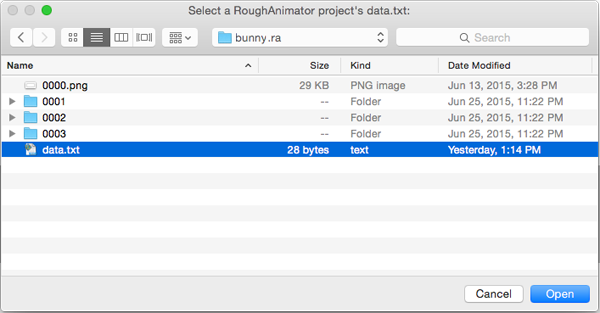
(On Mac, if the RoughAnimator project appears as a single file and is grayed out, changing the extension will make Animate recognize it as a folder so you can open it. Just take the "a" off the end so it's ".r" and then you can change it back to ".ra" after this is finished.)
5) Choose whether to convert the bitmap images to vector shapes.
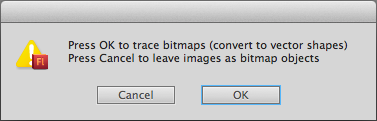
6) Wait a bit while Flash imports the images, and then... ta da!

How to export from Flash/Animate to a RoughAnimator project:
1) Download this Flash extension and install it.
Latest update: April 22, 2018
For Animate CC, you can use this tool to install extensions.
2) With your Flash project open, run the extension from the Commands menu in Flash.

(If it doesn't appear in the Commands menu, here's a workaround to install it manually:
Rename the .zxp file to .zip, unzip it and there's a .jsfl file inside.
You can just open the .jsfl file to run it in Animate, OR you can find the "Commands" folder to copy the .jsfl file into that will make it show up in the menu - this page from Adobe should help you find that folder.)
3) Choose where to save the exported RoughAnimator project.
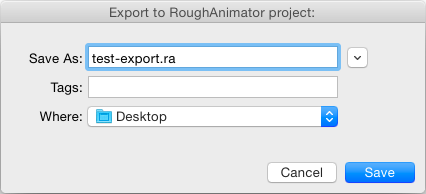
4) Make sure that the width/height matches your project, and that "Full Document Size" and "24 bit with alpha channel" (in Animate CC, "32 bit") are selected.
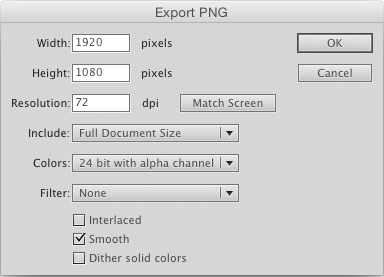
5) Wait for the export to finish.
6) Ta da!
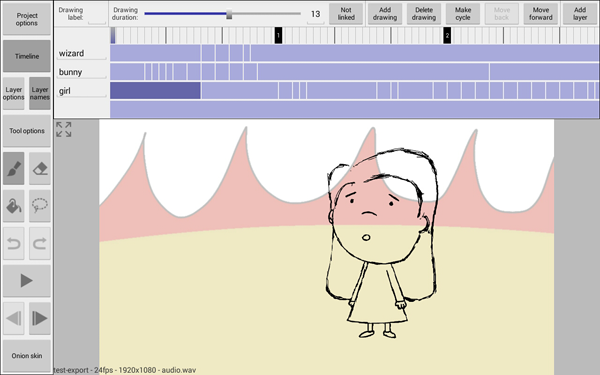
1) If you need to transfer the project from your mobile device to your computer:
- iOS: You can get to the project files through the Files app (they're in a "RoughAnimator" folder), or on the desktop through Finder (or before Catalina, through iTunes).
- Android: On Android 10 and earlier, the files are in a "RoughAnimator" folder in your external storage.
On Android 11 and above the folder is harder to find. I think the location is this, or something like this: /storage/emulated/0/Android/data/com.weirdhat.roughanimator/files But, Android won't give apps other than RoughAnimator permission to access that folder. I believe though that you can get to it from your PC with the Android device plugged into it. There may also be other workarounds like this.
2) Download this Flash extension and install it.
Latest update: February 1, 2021
For Animate CC, you can use this tool to install extensions.
3) Run the extension from the Commands menu in Flash.
(If it doesn't appear in the Commands menu, here's a workaround to install it manually:
Rename the .zxp file to .zip, unzip it and there's a .jsfl file inside.
You can just open the .jsfl file to run it in Animate, OR you can find the "Commands" folder to copy the .jsfl file into that will make it show up in the menu - this page from Adobe should help you find that folder.)
4) Select the "data.txt" file inside your project folder.
(On Mac, if the RoughAnimator project appears as a single file and is grayed out, changing the extension will make Animate recognize it as a folder so you can open it. Just take the "a" off the end so it's ".r" and then you can change it back to ".ra" after this is finished.)
5) Choose whether to convert the bitmap images to vector shapes.
6) Wait a bit while Flash imports the images, and then... ta da!
How to export from Flash/Animate to a RoughAnimator project:
- This will only export the keyframes on the main stage - any additional animation inside symbols during a held frame will be lost. Tweens are converted to keyframes.
- If there is a layer that contains only an audio file, the audio will be included in the export.
1) Download this Flash extension and install it.
Latest update: April 22, 2018
For Animate CC, you can use this tool to install extensions.
2) With your Flash project open, run the extension from the Commands menu in Flash.
(If it doesn't appear in the Commands menu, here's a workaround to install it manually:
Rename the .zxp file to .zip, unzip it and there's a .jsfl file inside.
You can just open the .jsfl file to run it in Animate, OR you can find the "Commands" folder to copy the .jsfl file into that will make it show up in the menu - this page from Adobe should help you find that folder.)
3) Choose where to save the exported RoughAnimator project.
4) Make sure that the width/height matches your project, and that "Full Document Size" and "24 bit with alpha channel" (in Animate CC, "32 bit") are selected.
5) Wait for the export to finish.
6) Ta da!